QR Ordering Setup Guide
Online Menu Setup Guide
for SkyTab Online and QR Ordering
STEP 1 Log into Lighthouse Business Management System.
STEP 3 Locate the SkyTab Online (QR Ordering) app and select
View details.
STEP 5 Select Allow to grant access to the location.
STEP 6 After installing SkyTab Online in the Marketplace, you will be redirected to the SkyTab Restaurant Settings Page. A yellow status bar at the top of the page will appear, explaining that your payments are currently being set up and that it may take up to 24 hours to complete. If you see a red status bar this means your payments cannot be set up and you must contact technical support.
 STEP 7
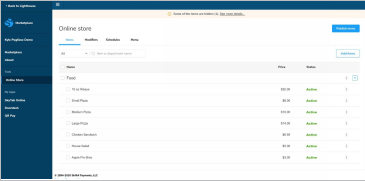
Configure your online menu through the Online Store. You can push your entire POS menu to your online ordering site or select certain items. Once your menu is configured the way you would like it, select Publish Menu. If the menu has already been published in the Online Store, skip this step.
For more information on the Online Store, please watch the Online Store video.
STEP 8 Begin configuring SkyTab Online and QR Ordering by selecting SkyTab Online (QR Ordering) under My Apps.
 STEP 9
Configure Restaurant Settings.
Enter Online Name and Timezone. The phone number and email address are optional, and the address will be preconfigured with the information that is already on file.
 STEP 10
Add a Restaurant Image, which displays on the customer-facing online ordering page. This can be your restaurant logo or an image of the restaurant.
The image to the left is a preview of how an image will appear on the customer-facing online ordering page.
 STEP 11
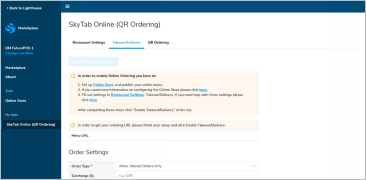
Select the Takeout/Delivery tab to set up the order settings.
STEP 12
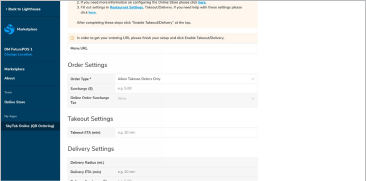
The Order Type will allow you to enable takeout, delivery, or both. You have the ability to set up a surcharge for the Order Type.
For example: Charge an additional $1 for all delivery orders placed through SkyTab Online.
Select the appropriate tax category that should be applied to the surcharge.
 STEP 13
The Takeout ETA is the approximate time in minutes it will take to prepare an order.
The customer will be provided an estimated time when the order will be ready.
 STEP 14
Repeat the same steps for Delivery Settings if applicable. Add a Delivery Radius. The delivery radius is the maximum distance from the restaurant where you will deliver.
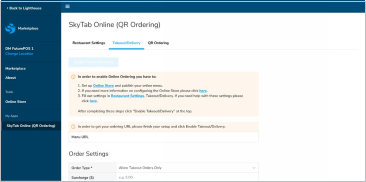
Press Save when complete. When you're ready to publish your online ordering site, press Enable Takeout/Delivery at the top of the page.
 STEP 15
To view the customer-facing online ordering page, view and copy the Menu URL. This is only visible after you’ve fully configured SkyTab Online and published a menu. You can promote the URL on social media or an existing website once you’re ready to take orders.
QR ORDERING
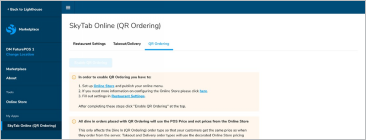 STEP 16
If you want to allow your customers to order from their phone within the restaurant using a QR code placed on the table, go to the QR Ordering tab and press Enable QR Ordering.
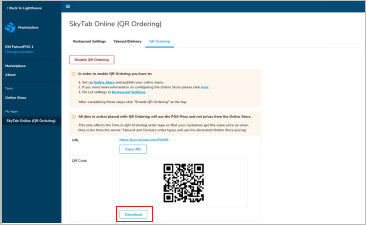 STEP 17
You can download the QR code and print it on table tents, placemats, etc. for your customers to place their orders.
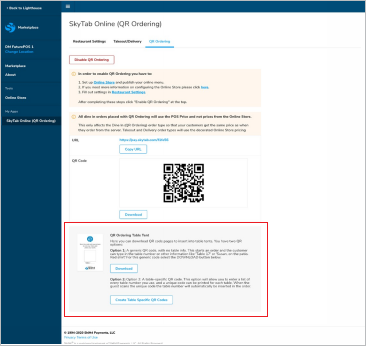 STEP 18
The “QR Ordering Table Tent” section provides a way to automatically create table tents with the QR code populated in the template. There are two options: you can use a generic QR code, or a table-specific QR code which auto-fills the table number/name for the customer so that they don't need to enter this information them- selves.
- Option 1: Click the Download button to simply download a single table tent pdf with the generic QR code embedded. The line for “Table #” will be empty to be filled in manually.
- Option 2: Select Create Table Specific QR Codes to enter your table numbers/names in order to have the table tents pre-populated with this information.
For both options above, you will need to print these out and insert them into a standard 4" x 6"acrylic table tent sign holder (available from many restaurant supply vendors or online from Amazon or other retailers).
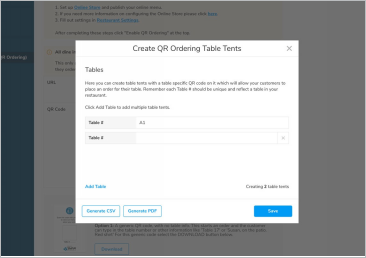 STEP 19
If you selected Option 2 above, you will need to enter your table numbers/names to create table-specific QR codes and table tents.
- Select Generate CSV to download a .csv file with table-specific QR Ordering URLs for each table if you
want to generate your own QR codes for custom made
table tents, coasters, etc.
- Select Generate PDF to download a .pdf file with
table-specific table tents (single file with a page for each table number/name that was entered.
- Press Save to save the table configuration so that you don’t have to re-enter the tables next time.
 STEP 20
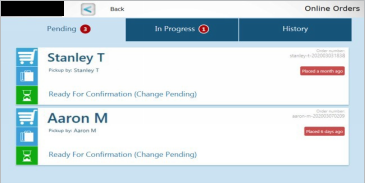
The orders that customers place online or via QR code will appear in your POS system automatically.
© 2020 Shift4 Payments, LLC. All rights reserved. 6
Related Articles
POS SETUP & REQUIRMENTS FOR SKYTAB ONLINE
POS SETUP & REQUIRMENTS FOR SKYTAB ONLINE Navigate to Marketplace Settings in SkyTab POS Before you can use SkyTab Online at your location, you will need to add configuration to your SkyTab POS system to ensure the orders flow from your SkyTab Online ...FOLOS Marketplace Installation Guide
Lighthouse Business Manager FOLOS Marketplace Installation Guide Please follow the steps below to install the FOLOS Marketplace integration. Note: For POSitouch, Future POS, or Restaurant Manager merchants, all communication and data syncs need to be ...Global Price Increase Decrease for Online Ordering
Global Price Increase/Decrease for Online Ordering Go into Lighthouse>Marketplace>Menu Manager Change the SHOW filter to ITEMS Select a department and then click the check box to select all. On the bottom right select 'EDIT ITEMS > Change Prices ...Setting Up Gift Card Payments for SkyTab Online
Setting Up Gift Card Payments for SkyTab Online You will need Lighthouse Business Manager credentials to complete this task. This task will take approximately 2 minutes to complete. Start by logging into Lighthouse Business Manager. Navigate ...Set Online Order Throttling for SkyTab Online
Set Online Order Throttling for SkyTab Online You will need access to Lighthouse Business Manager to complete this process. This process will take approximately 2 minutes to complete. Begin by logging into Lighthouse Business Manager. Navigate ...